
The kitchen's closing. From Tuesday, November 24 through Sunday, November 29, I'm unavailable for Thanksgiving. And of course that's exactly when a Mac decides to announce "Your disk is almost full" at 9 p.m. on a deadline. So here's your plan for clearing your plate while I'm away: Mac Tune-Up, my Mac maintenance app, and its Full Auto mode. And while I'm gone, my cartoon stand-in, Techie Chris, has the desk.

What To Expect While I’m Gone
Closed: Tue Nov 24 through Sun Nov 29. No booked sessions that week.
Still around: I'll answer texts and emails.
Back to normal: after the long weekend.
Digital leftovers, meet Mac Tune-Up
Every Mac collects leftovers: old installers, forgotten caches, apps you haven't opened since 2023. Mac Tune-Up is the app that handles that housekeeping. Three tools do the work:
Clean & Optimize. Previews cleanup by category, with sizes, then runs maintenance like a DNS flush and database tune-ups. Choose Full Auto or Manual (more on that below).
Uninstall & Remove. Removes an app along with its leftover support files, offers a Quick Uninstall list, and hunts down old installers (.dmg, .pkg, .iso, .xip). Files synced through Dropbox, Google Drive, and OneDrive stay put.
Disk Analyzer. Maps where your storage went, with a Largest Files view so you can spot the biggest helping in seconds. Some items carry a "Safe to clean" badge.
Techie Chris Has The Desk While I’m Out
Meet my digital stand-in: Techie Chris, the built-in guide (yes, a cartoon me). He points to what's on screen and explains each step as you go, so you're never guessing which button comes next. If he's too chatty, you can switch him off for a simple arrow guide.

Built With Guardrails
I built Mac Tune-Up so the things your Mac needs to run aren't on the chopping block:
Preview first, then you confirm. Every clean and uninstall shows you what's about to be removed, with sizes, and nothing runs until you say so.
Protected locations. Key folders like your home folder, Documents and system locations can't be trashed from Disk Analyzer.
System files stay out of sight. Disk Analyzer hides system and hidden files by default, so the things your Mac depends on aren't on the list to begin with. (An advanced setting can reveal them.)
macOS helps too. It shields some system files from every app, Mac Tune-Up included.
Removed items go to the Trash. (Full Auto empties it, as covered below.)
Your personal data stays yours. The app doesn't collect or keep personal data.
Full Auto vs. Manual
Full Auto runs every cleanup and maintenance task in one go. It's the one that clears your plate while I'm away.
Manual lets you pick each task yourself.
One thing to know: Full Auto empties the Trash. The app tells you so up front, before it runs.
How To Clear Your Plate With Full Auto
Check your Mac. You need macOS Sonoma (14) or later, on Apple Silicon or Intel.
Get the app (link below) and open it. Follow Techie Chris through setup, which includes granting Full Disk Access.
Open Clean & Optimize and review the preview of what will be cleaned.
Choose Full Auto, confirm, and let it run. macOS may ask for your administrator password. That's the real macOS prompt.
Check your free space when it finishes, and use Disk Analyzer's Largest Files view if you want to find what's still taking up room.
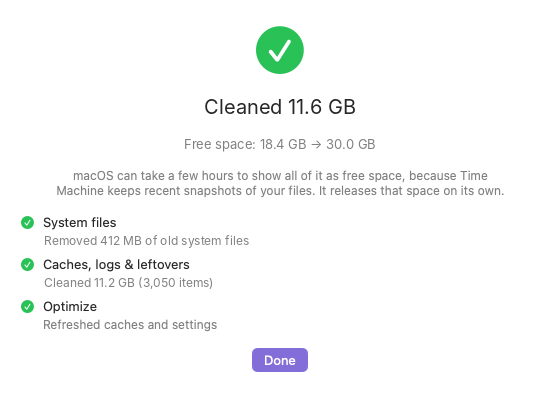
Set Your Expectations
Full Auto is cleanup and maintenance. It can help when you're low on storage or your Mac feels sluggish, but it doesn't diagnose failing hardware and I can't promise it fixes everything. Mac Tune-Up also doesn't answer general tech questions; for those, you need a session with me.
If your Mac is still misbehaving after a run, text, email, or book a session right from the app. I'll answer while the kitchen's closed, and we'll figure out the next step once I'm back. Techie Chris will keep the desk warm until then.
$12, Or FREE With a Session
$12, one time. Pay once, own it. No subscription. Instant download after checkout.
Free with any remote or in-person session. Book a session with me and the app is yours at no extra cost.
